
Documentation Index
Fetch the complete documentation index at: https://docs.zephior.ai/llms.txt
Use this file to discover all available pages before exploring further.
What is Export?
Export creates a completed version of your original RFP file with all responses automatically filled in. You don’t need to manually copy responses back into the original document - Zephior does it for you.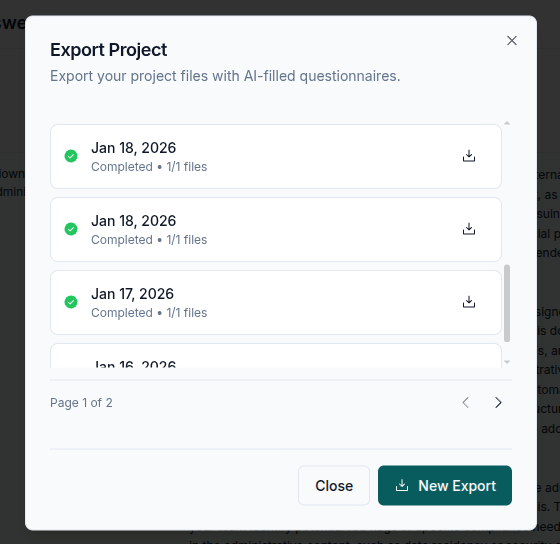
How It Works
When you export a project:- Zephior takes your original RFP Excel file
- Matches each generated response to the correct question
- Fills in the answer column automatically
- Preserves all original formatting
What You Get
| Output | Description |
|---|---|
| Filled Excel file | Your original RFP with responses filled into the answer columns |
Source Archives
When you download a whole source or a selected group of workspace items, Zephior packages them into a ZIP archive. If the workspace includes Artifacts, they are included in a portable structured format so your team can keep the artifact state alongside the supporting documents.How to Export
Multi-Sheet Support
If your RFP has multiple sheets, Zephior handles each one:- Detects the question and answer columns per sheet
- Fills responses in the correct locations
- Works with different layouts across sheets
Best Practices
Approve responses before exporting
Approve responses before exporting
Review and approve all responses to ensure quality before downloading.
Check trust scores
Check trust scores
Review responses with lower trust scores before export.
Review the filled file
Review the filled file
After export, do a final review of the filled document before submission.
Troubleshooting
Some answers not filled in
Some answers not filled in
If certain questions weren’t matched, you may need to fill those manually. This can happen with very short or ambiguous questions.
Export taking a long time
Export taking a long time
Large RFPs with many sheets may take longer to process. The export runs in the background.
Related Pages
Edit and Approve
Review responses before export
Response Generation
Generate responses for your project