
Documentation Index
Fetch the complete documentation index at: https://docs.zephior.ai/llms.txt
Use this file to discover all available pages before exploring further.
Identity & Access Management
Zephior uses Role-Based Access Control (RBAC) to manage what each member of your organization can see and do. The system gives you fine-grained control over:- Who can access your organization’s features (Chat, Projects, billing, settings)
- What each person can do inside a Library source or Project (view, edit, upload, delete)
- Which Library sources and Projects each person can access, and at what level
Throughout this page, “source” refers to both Library entries and Projects. The permissions and access control system works identically for both.
Key Concepts
Permissions
A permission is a specific action a user can perform — for example, “View sources”, “Upload files”, or “Manage billing”. You never assign permissions directly to a user. Instead, permissions are bundled into Roles and Access Levels.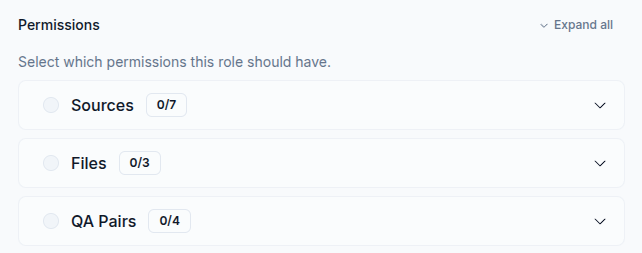
Roles
A Role is an organization-wide bundle of permissions. Every member has one or more roles. Roles determine what organization features the user can access (settings, members, billing) and what they can do on Library sources and Projects they have access to.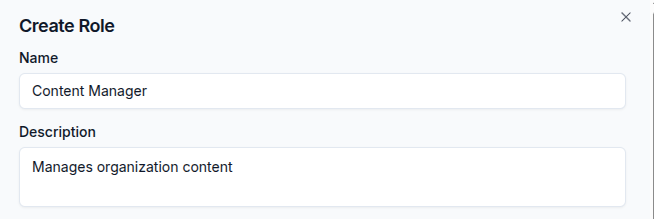
Access Levels
An Access Level is a source-specific bundle of permissions. Unlike roles, access levels only contain source-related permissions (viewing, editing files, managing Q&A pairs). Access levels are used when sharing a Library source or Project with someone to give them a specific set of capabilities on that particular source.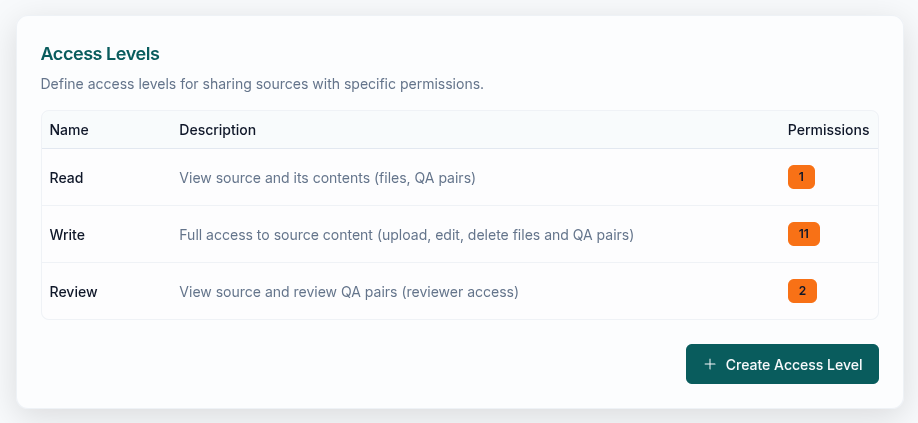
How Roles and Access Levels Differ
- Roles apply organization-wide and include all permissions (features, settings, billing, etc.)
- Access Levels apply to a specific Library source or Project and only include source-related permissions (viewing, editing files, managing Q&A pairs)
Roles
Default Roles
Every organization comes with five built-in roles:| Role | Description | Editable |
|---|---|---|
| Super Admin | Unrestricted access to everything. Bypasses all permission checks. | No |
| Sources Admin | Unrestricted access to all Library entries and Projects, regardless of visibility or grants. | No |
| Admin | Full access to all features. Can manage roles, members, billing, and all Library entries and Projects. | Yes |
| Member | Can create and work with Library entries and Projects — edit, upload files, manage Q&A pairs. Can view other members. Cannot access settings, billing, or role management. | Yes |
| Viewer | Read-only access. Can view Library entries and Projects, and use Chat. Cannot modify anything. | Yes |
The Super Admin role is protected. Only an existing Super Admin can assign or remove it. The organization creator always retains Super Admin access.
Multiple Roles
A user can have multiple roles. When a user has several roles, their effective permissions are the combination of all roles’ permissions. For example, a user with both “Viewer” and a custom “QA Reviewer” role can both view sources and approve Q&A pairs.Custom Roles
Create custom roles to fit your organization’s needs. When creating a role, you can choose whether it applies to public sources, private sources, or both.
You can edit or delete any editable role at any time — including the default Admin, Member, and Viewer roles. When a role is deleted, it is automatically removed from all users who had it.
Access Levels
Default Access Levels
Every organization comes with three built-in access levels:| Access Level | Permissions | Use case |
|---|---|---|
| Read | View content | Give someone read-only access to a specific Library entry or Project |
| Write | View, edit, export; upload/edit/delete files; manage Q&A pairs | Full working access to a specific Library entry or Project |
| Approve | View content, approve Q&A pairs | Reviewer access to check and approve Q&A content |
Custom Access Levels
Create custom access levels when the defaults don’t match your needs — for example, a level that allows file uploads but not Q&A management.Access levels can only contain source-related permissions. Organization-level permissions (settings, billing, audit) can only be assigned through roles.
Common Scenarios
A user should only view sources but also approve Q&A pairs
A user should only view sources but also approve Q&A pairs
Create a custom role (e.g., “QA Reviewer”) with the View sources and Approve QA pairs permissions. Assign it to the user alongside their existing Viewer role — permissions are additive.
Give one user write access to a single private source without changing their role
Give one user write access to a single private source without changing their role
Open the source, click Sharing & Visibility, and invite the user with Custom Access using the Write access level. They now have write permissions on this source only. See Sharing & Access Control for details.
External reviewers who can only see public sources
External reviewers who can only see public sources
Create a custom role (e.g., “External Reviewer”) that only applies to public sources, with view and Q&A approval permissions. Users with this role won’t be able to access any private source.
Restrict a user's access on a specific public source
Restrict a user's access on a specific public source
Give the user a custom access grant with a lower access level. Custom access grants replace the user’s role permissions for that specific source. See Sharing & Access Control for details.
Hand off a source to another team member
Hand off a source to another team member
Open the source, click Sharing & Visibility, and click Transfer Ownership in the Owner section. Select the new owner and confirm. Only the current owner or a Super Admin can transfer. See Sharing & Access Control for details.
Permission Categories
When creating or editing roles and access levels, permissions are organized into the following categories:| Category | What it covers |
|---|---|
| Sources & Files | Creating, viewing, editing, and deleting Library sources and Projects. Uploading and managing files. Managing who has access. |
| Q&A Pairs | Creating, editing, deleting, and approving Q&A pairs within sources. |
| Features | Access to Chat and Project response generation. |
| Organization | Viewing and editing settings, managing members and roles, configuring security. |
| Billing | Viewing invoices and managing subscription plans. |
| Audit | Viewing and exporting audit logs. |
Access levels can only include permissions from the Sources & Files, Q&A Pairs, and Features categories. Organization, Billing, and Audit permissions can only be assigned through roles.
Real-Time Updates
When you change a user’s role or access, the update takes effect immediately — no page refresh needed.Related
Sharing & Access Control
Share Library sources and Projects with team members
Team Management
Invite, remove, and manage members
Security Settings
MFA, SSO, and password policies
Audit Logs
Monitor organization activity