
Documentation Index
Fetch the complete documentation index at: https://docs.zephior.ai/llms.txt
Use this file to discover all available pages before exploring further.
Enterprise Single Sign-On
Available on Advanced and Enterprise tiers Connect Zephior to your organization’s identity provider so team members can sign in with their corporate credentials.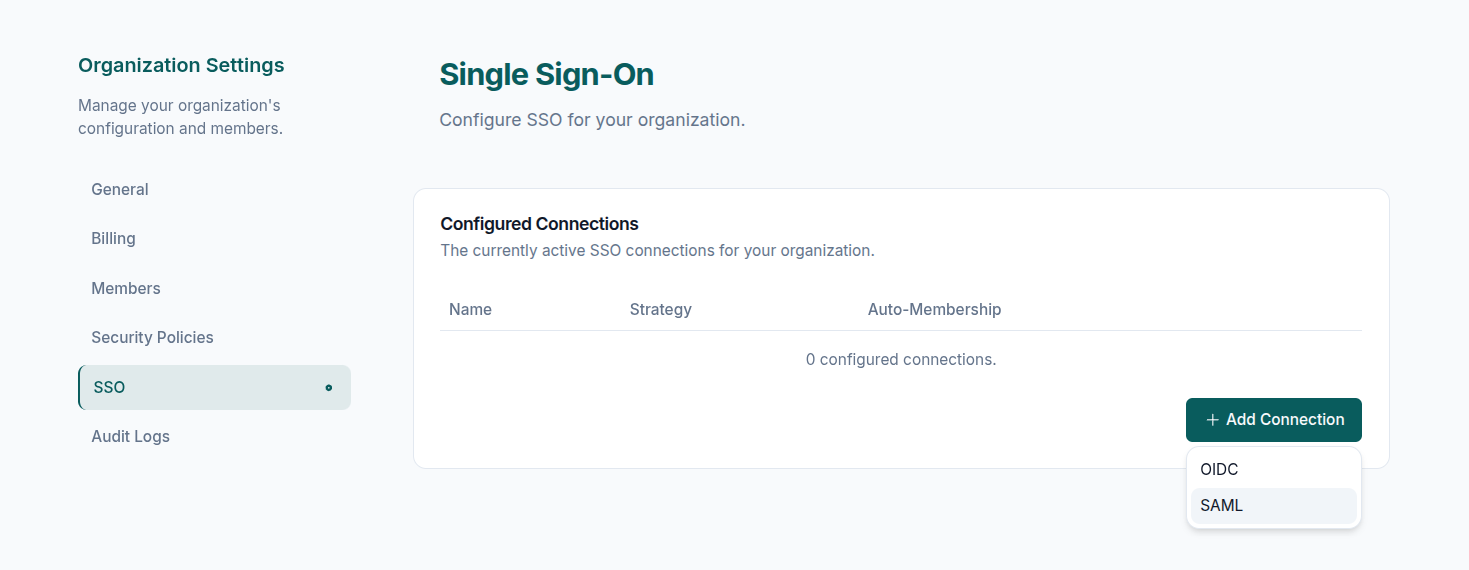
Supported Protocols
OpenID Connect (OIDC)
Modern standard supported by most identity providers. Recommended for new setups.
SAML 2.0
Enterprise standard compatible with legacy systems and corporate IdPs.
Supported Identity Providers
| Provider | Protocol |
|---|---|
| Okta | OIDC / SAML |
| Microsoft Entra ID (Azure AD) | OIDC / SAML |
| Google Workspace | OIDC |
| PingFederate | SAML |
| ADFS | SAML |
| OneLogin | OIDC / SAML |
| JumpCloud | OIDC / SAML |
Any OIDC or SAML 2.0 compliant identity provider works with Zephior.
Setting Up SSO
Verify Your Domain
Add a DNS TXT record to prove domain ownership.
- Go to Settings → SSO
- Enter your domain (e.g.,
yourcompany.com) - Add the provided TXT record to your DNS
- Click Verify Domain
Configure Your Identity Provider
For OIDC: Obtain Client ID, Client Secret, and Discovery URL from your IdP.For SAML: Obtain Metadata URL, Entity ID, and X.509 Certificate.
Connect to Zephior
- Select your protocol (OIDC or SAML)
- Enter your IdP credentials
- Click Save Connection
How SSO Login Works
- User enters their email at login
- Zephior detects the SSO-enabled domain
- User clicks Continue with SSO
- User authenticates via your identity provider
- User is signed into Zephior
Auto-Provisioning
| Setting | Behavior |
|---|---|
| Enabled | Users automatically join on first SSO login |
| Disabled | Users must be invited before accessing Zephior |
SSO Features
| Feature | Description |
|---|---|
| Multi-Domain Support | Add multiple domains to one SSO connection |
| MFA Passthrough | Your IdP’s MFA policies are respected |
| JIT Provisioning | New users can self-provision via SSO |
Managing SSO
Update Configuration
- Go to Settings → SSO
- Click Edit Connection
- Update credentials and test
Disable SSO
- Toggle off Enable SSO for Organization
- Users will need to set Zephior passwords
Troubleshooting
Users can't find SSO option
Users can't find SSO option
Verify the email domain matches your configured domains in Settings → SSO.
SSO login fails
SSO login fails
Check that Client ID/Secret are correct and callback URLs are allowed in your IdP.
Domain verification failing
Domain verification failing
DNS changes can take up to 48 hours. Verify the TXT record is correctly added.
Related
Security Settings
MFA and password policies
Team Management
Manage users and roles