
Documentation Index
Fetch the complete documentation index at: https://docs.zephior.ai/llms.txt
Use this file to discover all available pages before exploring further.
Update Your Knowledge Base Without Leaving Chat
Instead of manually editing QA pairs in your Library, you can update them conversationally through Chat. Simply describe what changed, and the AI will find and update the relevant content for you.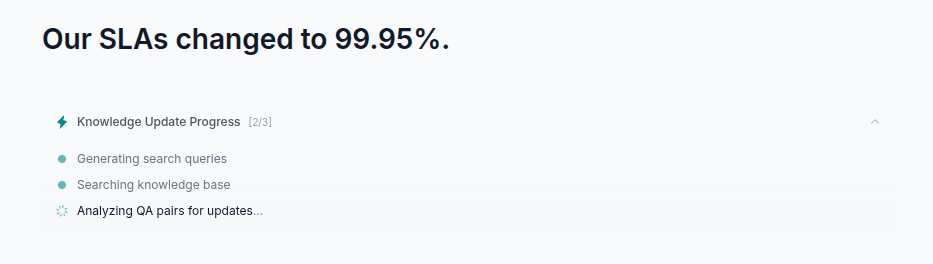
How It Works

AI Finds Relevant Content
The system searches your Library and identifies QA pairs that need updating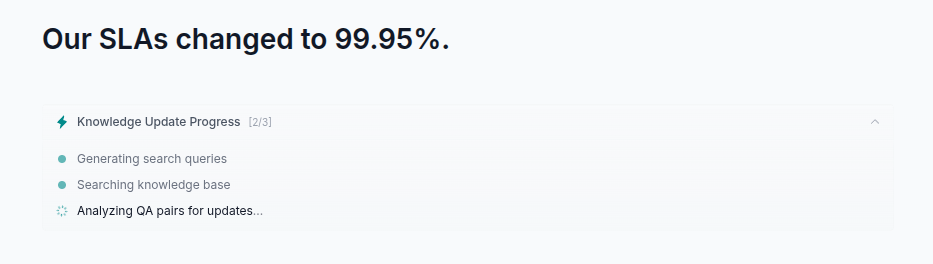
Key Features
Intelligent Matching
The AI doesn’t just do text replacement - it understands context:- Finds all variations of how information appears
- Identifies related content that might need updates
- Considers synonyms and different phrasings
- Preserves the original tone and style of each document
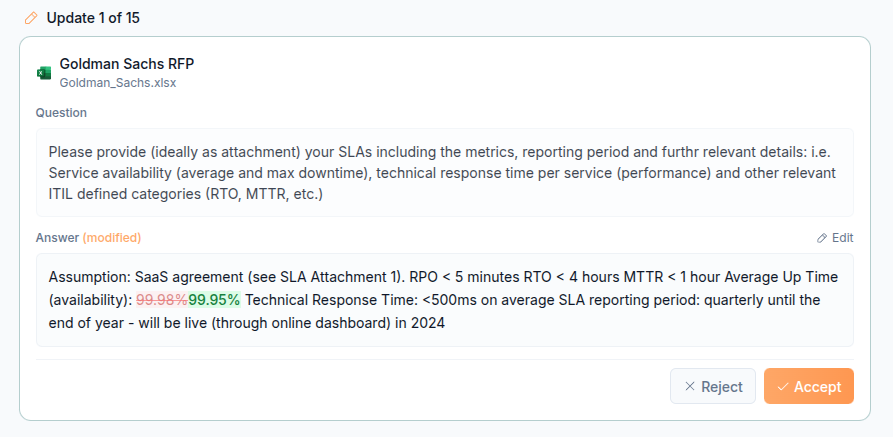
Word-Level Diff View
See exactly what will change before you approve:- Additions highlighted in green
- Removals highlighted in red
- Side-by-side comparison of old vs new
- Full context preserved around changes
Smart Response Generation
When updating content, the AI:- Corrects typos in surrounding text
- Matches the tone of the original document
- Integrates changes naturally into existing sentences
- Maintains consistent formatting
Common Update Scenarios
Updating Facts & Figures
- “Our revenue is now 8M”
- “We moved offices to 500 Main Street”
- “Our CEO is now Sarah Chen”
Updating Product Information
- “We added support for Python 3.12”
- “Our API rate limit increased to 1000 requests/minute”
- “We now offer 99.99% uptime SLA instead of 99.9%“
Updating Compliance Status
- “We completed our SOC 2 Type II audit”
- “Our ISO 27001 certification was renewed”
- “We’re now GDPR compliant”
Review & Approval Workflow
Individual Review
For each proposed change, you can:- Accept - Apply the change immediately
- Reject - Skip this change, keep original
- Edit - Modify the proposed text before applying
Bulk Operations
When many QA pairs need the same update:- Accept All - Apply all proposed changes at once
- Reject All - Cancel all proposed changes
- Select specific changes to apply or reject
Auto-Approval
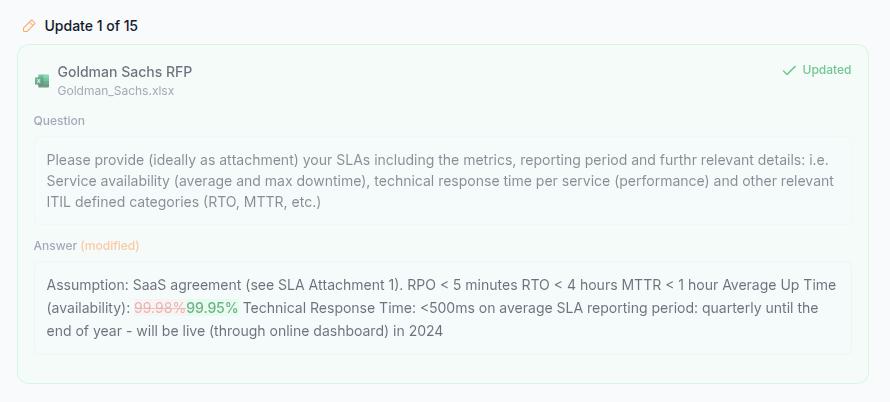
When you accept a change:- The QA pair is updated with your approved text
- The QA pair is automatically marked as approved
- It’s immediately available for response generation
Best Practices
Be specific about what changed
Be specific about what changed
Instead of “update our company info,” say “Our employee count changed from 100 to 120.”
Review changes before bulk accepting
Review changes before bulk accepting
The AI might find content you didn’t know existed. Review to ensure all changes are appropriate.
Update one topic at a time
Update one topic at a time
For clarity, make updates in focused batches rather than combining multiple unrelated changes.
Use for recurring updates
Use for recurring updates
Quarterly metrics, annual certifications, and regular updates are perfect for this workflow.
Permissions
To use knowledge updates via Chat:- You must have Edit access to the source containing the QA pairs
- Private sources require explicit edit permission
- Public sources can be edited by any organization member
Related Features
Search Tools
Learn about Simple, Deep, and Wide search
Library Overview
Understanding your knowledge repository