
Documentation Index
Fetch the complete documentation index at: https://docs.zephior.ai/llms.txt
Use this file to discover all available pages before exploring further.
QA Review Workflow
The review workflow lets your team collaborate on QA pair quality. Assign reviewers, track progress through visual states, and approve content in bulk. This works the same way in both Library sources and Project sources — anywhere you manage QA pairs.Review States
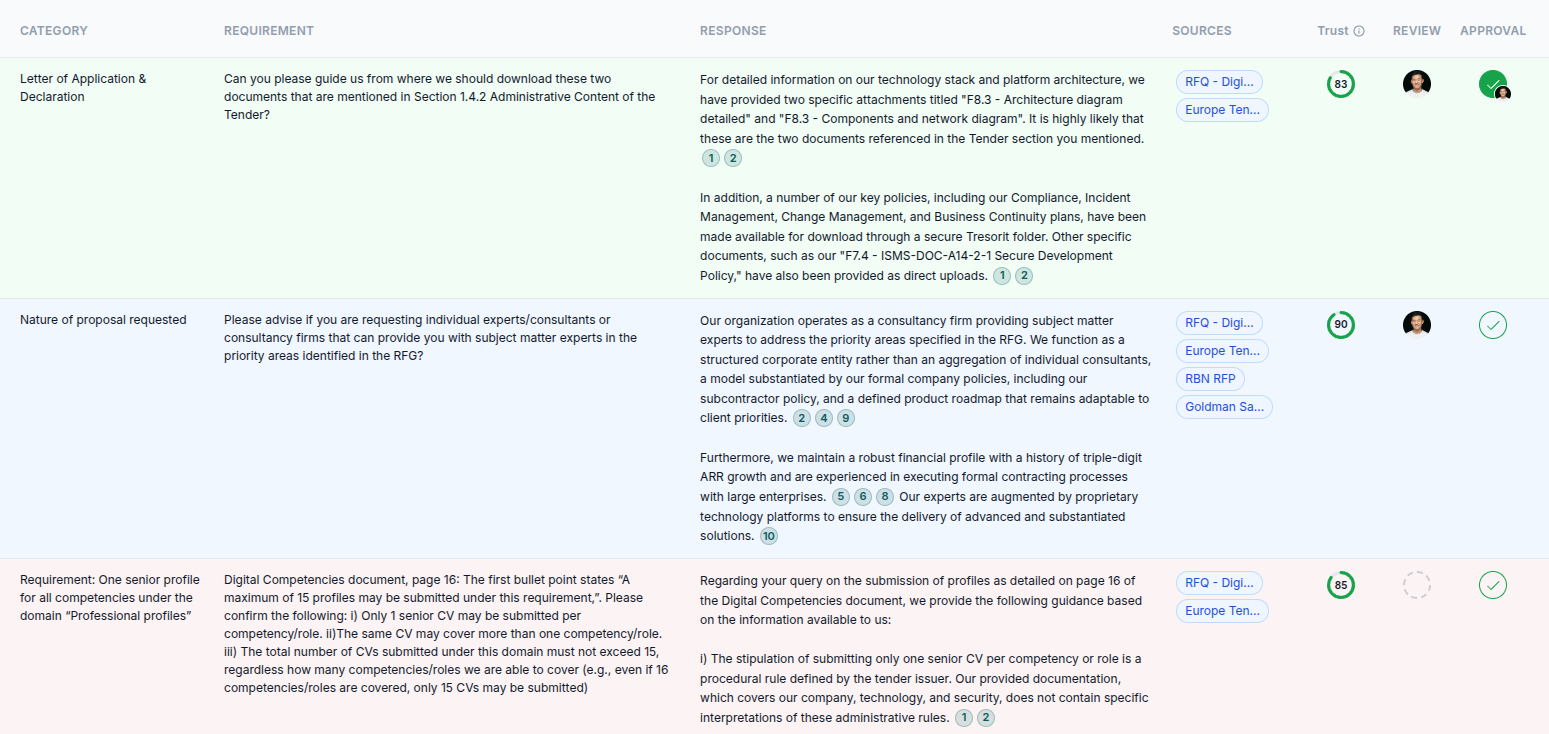
Every QA pair has a review state, shown by its row color:| State | Color | Meaning |
|---|---|---|
| Approved | Green | Reviewed and approved — ready for use |
| In Review | Blue | Assigned to a reviewer and awaiting their feedback |
| Draft | Red | Not yet submitted for review |
Assigning Reviewers
Click the reviewer avatar (or the empty circle) on any QA pair to open the member picker. Search for a team member and select them as a reviewer. You can assign multiple reviewers to the same QA pair — each one reviews and approves independently. To remove a reviewer, open the picker and deselect them.Submit for Review
Once reviewers are assigned, submit QA pairs for review:- Select one or more QA pairs using the checkboxes
- Click Submit for Review in the action bar
- Choose the reviewer(s) from the member picker
- Selected pairs move to In Review status
Bulk Operations
Select multiple QA pairs to perform actions in bulk:- Approve — mark all selected pairs as approved
- Unapprove — return approved pairs to their previous state
- Submit for Review — assign reviewers to all selected pairs at once
Filtering
Use the status and reviewer filters to focus your work:- By status — show only Draft, In Review, or Approved pairs
- My Reviews — show only pairs assigned to you for review
Excel Sheet Navigation
When you upload an Excel file with multiple sheets, the QA pairs are organized by sheet.Sheet Tabs
A tab bar appears at the bottom of the file viewer:- All — view QA pairs from every sheet
- Sheet tabs — one tab per sheet, showing the QA pair count for that sheet
- Unassigned — pairs not linked to a specific sheet (if any)
Content and QA Views
Toggle between two views using the button in the file header:- Content view — see the original spreadsheet with sheet navigation
- QA view — see extracted QA pairs, filterable by sheet